How to display a sub-report based on conditions of the parent report
Many modern report generators allow you to embed another report, the so-called sub-report. Why would you do that? For example, for the convenience of designing a report. If the main report and sub-report have a different type, it is easier to create them separately.
In addition, by dividing the report in this way, you can control the structure of the report depending on the conditions. For example, you display some basic information in the main report, but depending on that data, or some parameter in the report, one of several sub-reports will be selected. This makes your report more universal. There is no need to create multiple reports on different occasions.
The user of the ActiveReports report generator was just puzzled by this problem:
Technical Support Response:
Yes, it is possible to choose the SubReports from the Parent Report based on some condition. For instance, you can use the Visible property of SubReport control in the Detail's Format Event to control the visibility of the subreports based on a counter variable incremented each time Detail.OnFormat event is fired.
In FastReport .NET, the sub-report is created simply on another page and has access to the same data as the main report. The main report adds a Subreport object to the location where you plan to put the sub-report. This object is a link to the report page that will be created immediately. As part of the new report page, you create the desired pattern.
By the way, you can first create a report with several pages, and then, if you want, you can add a sub-report object and put it in its properties a link to the desired page.
Let's take a look at how to make a report with the display of sub-report according to the conditions. In fact, the idea is simple. Due to the scripts included in the report, we will provide visibility for the required sub-reports. In this case, sub-reports should be placed in the same place, one object over another.
Let's say that our report shows the order information. There are also several reports related to the order table: order details, products, customers. In addition to the order information, we want to list the products in the order, or customer information. The report has a parameter, based on which we will display a product list or customer information.
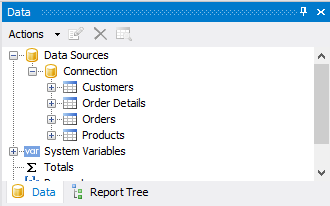
The template of the main report is pretty simple:
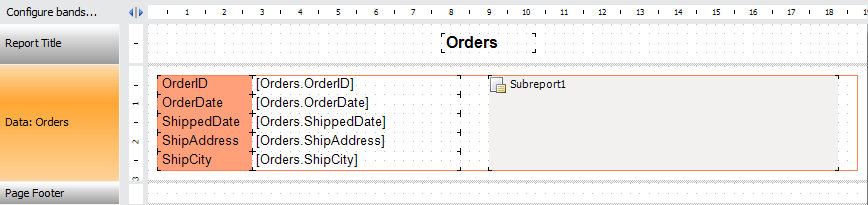
Basic information about the order is taken from the Orders table. Next to the added fields, we have a Subreport object. In Subreport1 properties, you should definitely put the PrintOnParent property on true.
When we added the sub-report object a new report page was automatically added. On this page, we create a subreport template that will display a list of products. Because the Orders table is connected with Order Details, the report will display records that correspond to the current order. The Order Details table also has a connection to the Products table. And we'll use the data from this connection:
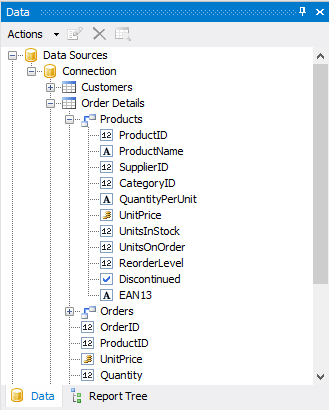
That is why links to the fields have such a view: Order Details.Products.ProductName.

Now let’s add one more Sub-report object. Place it over Subreport1. You also need to set the PrintOnParent property to true.

In the second subreport template we add a field from the Customers table that has a connection with the Orders table.
Now we have a report with two subreports. Add a report parameter. The parameter can be set from the outside of the report, for example, from the user program.
For Data band in the main report, create a handler BeforePrint event:
1 2 3 4 5 6 7 8 9 10 11 12 13 |
private void Data1_BeforePrint(object sender, EventArgs e) { if ((int)Report.GetParameterValue("Parameter") == 1) { Subreport1.Visible = false; Subreport2.Visible = true; } else { Subreport1.Visible = true; Subreport2.Visible = false; } } |
The code is simple, so actually basic programming skills are enough to create such kind of a report.
As a result, the product list will look like:
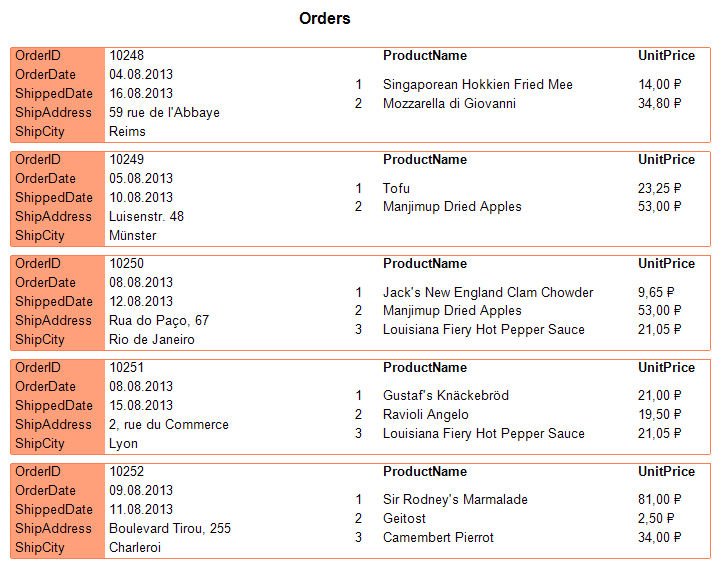
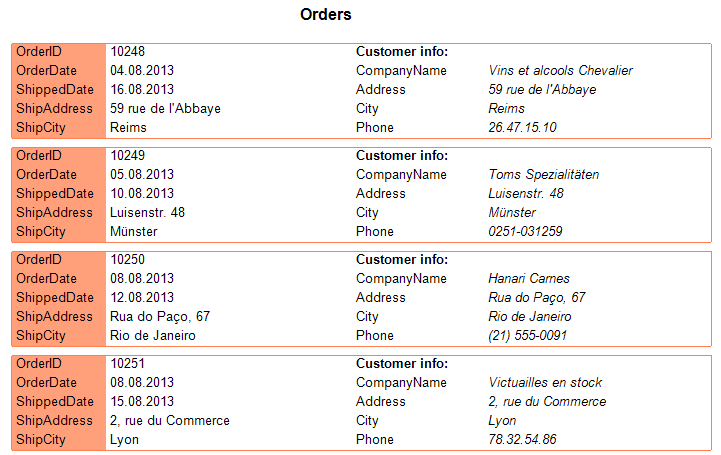
And the Customer information table will look like: