Easter eggs in the designer FastReport .NET
With this Easter egg, FastReport developers decided to show us an alternative way to use their generator. Based on the report, they created a game - the well-known Minesweeper. Surprisingly, this is indeed possible thanks to the built-in report script. However, this is not just a report from the demo folder. It is hidden from users. This is the easter egg. And you can find it in the report designer using a special passphrase. Let's try to do it. Launch the report designer and select the File-> New menu. In the form that opens, you need to enter the word GAME by the keyboard. Pay attention to the register. After you enter this word, a new Games section will appear:
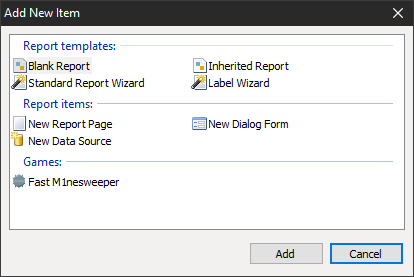
The name of the section hints at the fact that there can be many games. In the meantime, one report-game FastM1nesweeper. It is clear that the name must be read as Fast Minesweeper. Let's select this report and add it to the designer.
In this case, we will see this window:
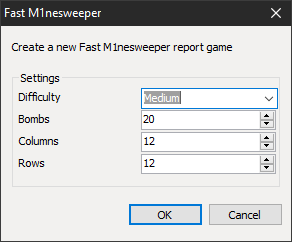
Here we can set the size of the playing field and the number of bombs. If you do not want to come up with sizes, you can use the presets in the Difficulty drop-down list:
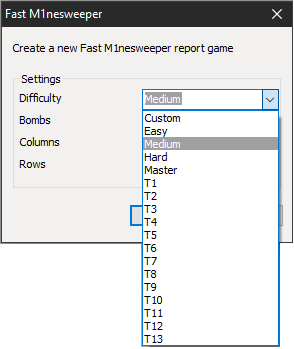
Each option has its own settings for field size and number of bombs. Well, let's try to make our settings simpler. This is what the report template will look like:
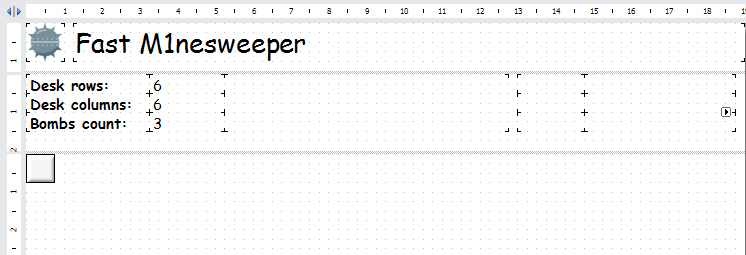
On the “Data” band, the playing field will be drawn using the Table cell object. Depending on the number of columns and rows, the field will be filled with cells. The cell has 5 states: filled, empty, with a number, with a cleared bomb and with an exploding bomb.
If you do not remember the rules of the game, then I will remind you. You need to open all the cells on the field and at the same time never get on the bomb. To calculate how far the bomb is from a particular cell, a number is written in it. It indicates how many bombs are within the radius of one cell around this cell. Focusing on the numbers in neighboring cells, we can conclude where the bomb is. Of course, you will have to open part of the cells for good luck. So, run the report in preview mode:
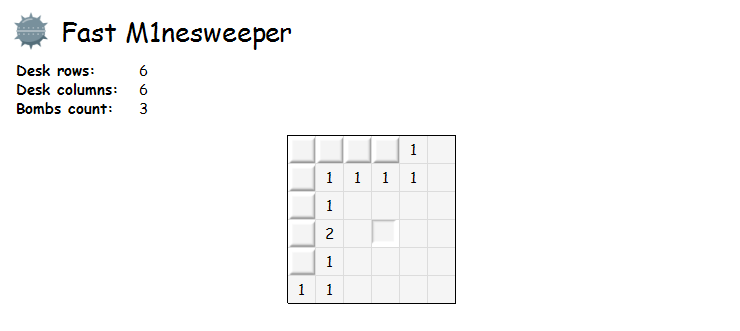
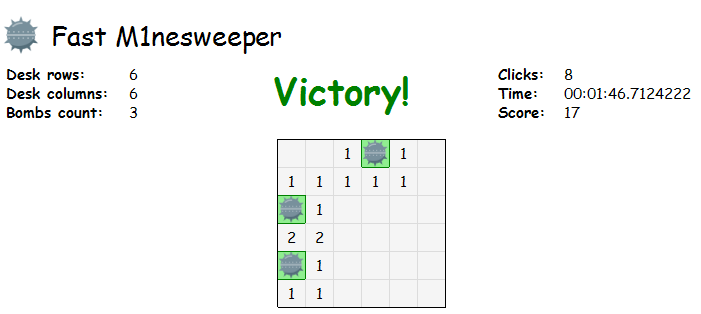
In our case, the goal is quite simple - you need to calculate only 3 bombs. This is how the victory will look like:
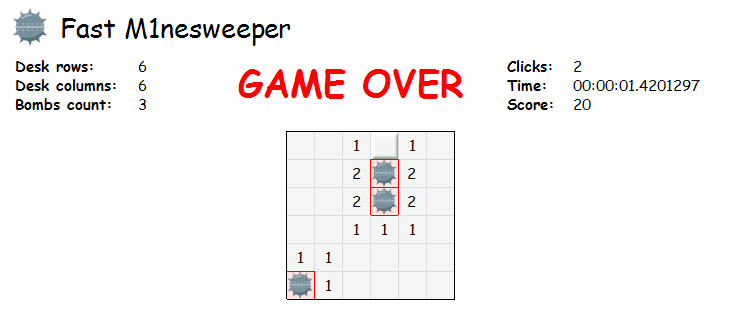
And so - a lossing:
Now the chore of creating reports will be more fun. Without leaving the designer, you can relax a bit and have fun, because it’s not necessary to tell your boss about this Easter egg.
Look at the Script tab, the amount of code is impressive. The real program. You can try your hand and write another game.
Easter eggs with games work not only in the report designer FastReport.Net, but also in the FastReport Designer Community.
Let's hope that the developers will periodically please us with new games.